Build a custom sorting strategy
Siftori’s strategy editor lets you decide exactly how a collection sorts: pick a sort order with tiebreaks, and optionally pull groups of products, like new arrivals or sale items, to the top with rules of their own. Open it with New strategy in the Sorting strategies section (choose Start from scratch, or Use a template to begin from a working example), or press Edit on any existing strategy.
New to strategies? Sorting strategies and templates covers what a strategy is and the ready-made ones you can start from.
Nothing changes in your store while you edit. A new strategy is created only when you press Save, and edits to an existing strategy take effect at the next sort. The In plain words section at the bottom restates the whole strategy in plain language as you edit, so you can check it reads back as what you meant.
Picking the sort order
Section titled “Picking the sort order”A strategy without segments is one sort order applied to the whole collection. Every sort option is a complete phrase, so there is no separate ascending or descending toggle:
| Sorts on | Options |
|---|---|
| Price | Lowest price first / Highest price first |
| Date added to Shopify | Newest first / Oldest first |
| Inventory | Least stock first / Most stock first |
| Discount | Deepest discount first / Smallest discount first |
| Title | Title A–Z / Title Z–A |
| Nothing | Keep current order |
| A daily shuffle | Random (fresh shuffle daily) |
Keep current order leaves products where they are, which is useful as a final tiebreak or in a strategy that only exists to power a segment. Random reshuffles once per day, not on every sort, so an hourly schedule doesn’t churn your storefront. A product’s discount is the percentage off its compare-at price; products not on sale count as 0.
Tiebreaks
Section titled “Tiebreaks”Press + Add tiebreak to decide what happens when the main sort can’t separate two products. Each “If tied,” row only applies to products the rows above it left tied, and you can drag the rows to reorder them. For example: Deepest discount first, if tied Lowest price first, if tied Newest first.
Ranges
Section titled “Ranges”For sorts on a number (price, inventory, discount), + Group into ranges sorts by bracket instead of exact value. Lowest price first in ranges of 20 treats 0 to 19.99 as one bracket, 20 to 39.99 as the next, and so on; products in the same bracket count as tied, so the next tiebreak decides their order. Ranges of 20 on price with a deepest-discount tiebreak, for example, turn a sale collection into price bands with the best deal leading each band.
Pulling a group to the top: segments
Section titled “Pulling a group to the top: segments”Press + Add segment to treat some products differently from the rest. A segment has three parts:
- Include: which products can join the segment. Pick All products, or products matching conditions you write (see below).
- Sort them by: the sort order for the segment’s products, with the same tiebreak and range controls as above.
- An optional cap: check Limit how many products this segment shows to let only the first N matching products in. The rest are not hidden; they fall through to the next segment or the final sort order as if they hadn’t matched.
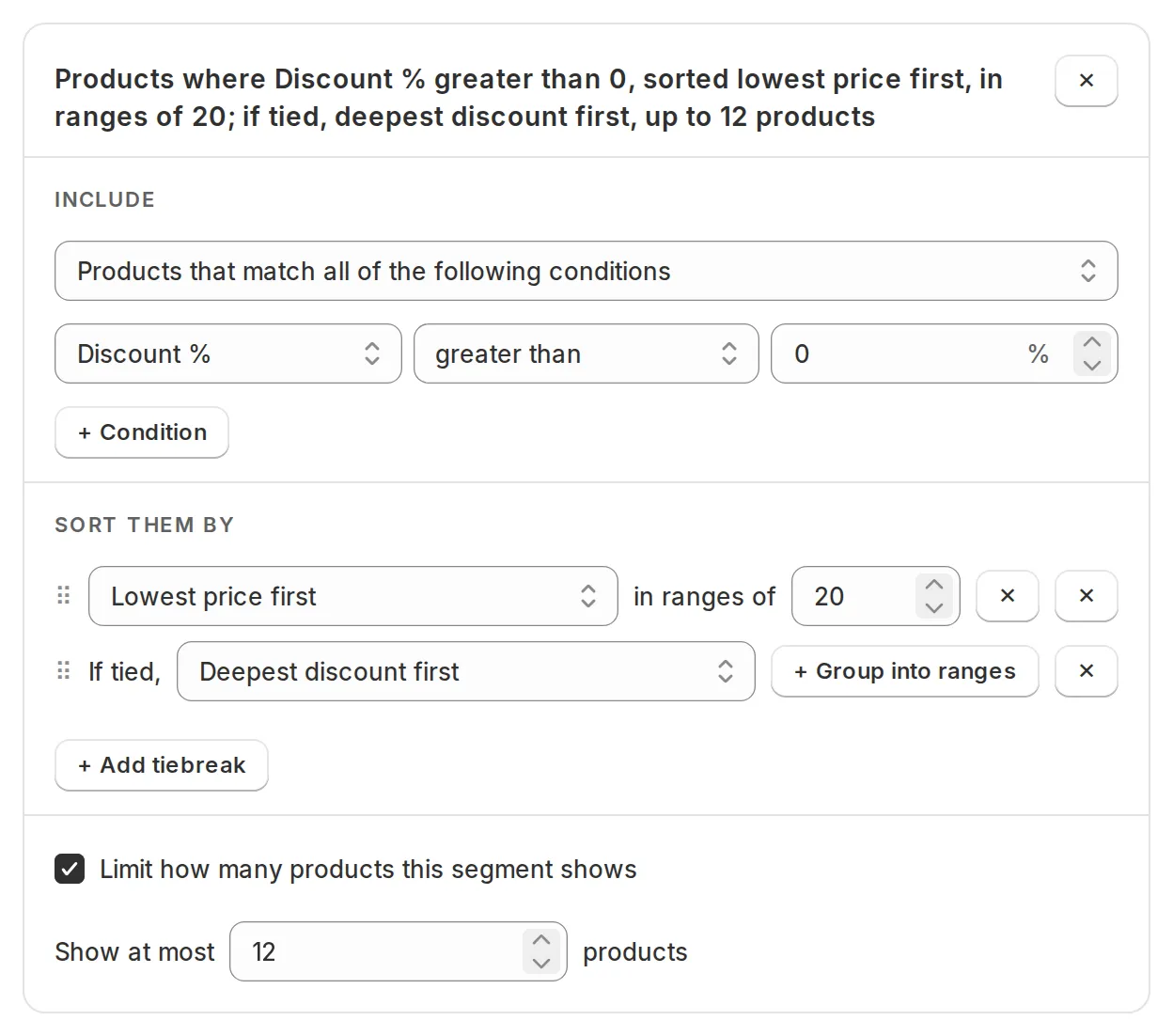
Each segment card is titled by the rule it holds, written out in plain words, so you can tell your segments apart at a glance. A segment you have just added is titled by its position until you fill in a condition. Once a segment has a rule, the same sentence appears in the In plain words summary under the builder.
With more than one segment, products are matched against segments top to bottom and the first match wins, so put the more specific segment higher. Drag segments to reorder them.
Products that match no segment follow the sort order under Then, everything else.
Including all products
Section titled “Including all products”Pick All products under Include to fill a segment from the whole collection instead of by conditions. With a limit, it takes at most N products, and everything else flows on to the segments and sort order below. Because each product lands in only one segment, all-products segments stack into slot-style layouts. For example, a segment of 4 sorted by Random (fresh shuffle daily) puts a rotating showcase at the top, and an all-products segment of 5 sorted by Lowest price first beneath it holds the 5 cheapest products the showcase didn’t already take.
Without a limit, an all-products segment takes every product that reaches it. That makes it a natural last segment: “everything else, sorted this way”. Anything below it, segments and the final sort order alike, is left with nothing to show.
Writing conditions
Section titled “Writing conditions”A condition compares one product field against a value you type:
| Field | Compares |
|---|---|
| Tag | any of the product’s tags |
| Product type | the product’s type |
| Vendor | the product’s vendor |
| Title | the product’s title |
| Price | the product’s price (its lowest variant price) |
| Discount % | the percentage off the compare-at price; 0 when not on sale |
| Inventory | total stock across tracked variants |
| Days since added | days since the product was created in Shopify |
Text fields compare with is, is not, contains, and doesn’t
contain. Number fields compare with is, is not, greater
than, less than, and their or-equal variants. So “new arrivals”
is Days since added less than 30, and “on sale” is Discount %
greater than 0.
A segment can hold several conditions, and the Include dropdown says how they combine: products that match all of them, or products that match any of them. To mix and with or, use two segments. Products where (type is Mug or type is Bowl) and price is less than 40, say, becomes a “Mugs under 40” segment above a “Bowls under 40” segment: first match wins, so together they hold exactly the products the mixed rule would, with the mugs listed first.
Saving
Section titled “Saving”Save with the bar at the top of the page. If a rule is incomplete or invalid, the message appears on the exact field it concerns; fix it and save again. Then open a collection that uses the strategy and press Preview to see the resulting order before anything goes live.